Lidia Commerce Documentation
The Invoice Center is a centralized management area where sellers upload invoices generated based on delivery processes, track their current status, and access historical records. This section ensures that delivery-based invoicing processes are carried out in a controlled, traceable, and auditable manner.
Uploading invoices to the system is required to ensure that shipping and service charges related to deliveries are accurately invoiced, to enable financial reconciliation, and to create an official record for potential disputes or audit processes.
Sellers -Merchant Console users- upload invoices to the system and can track the status of the invoices they have uploaded. Uploaded invoices enter the review process of Marketplace admins via the Marketplace Console; Marketplace admins perform invoice approval or rejection actions and, when necessary, can upload invoices on behalf of the seller.
All these processes can be transparently monitored through both the Merchant Console and the Marketplace Console.
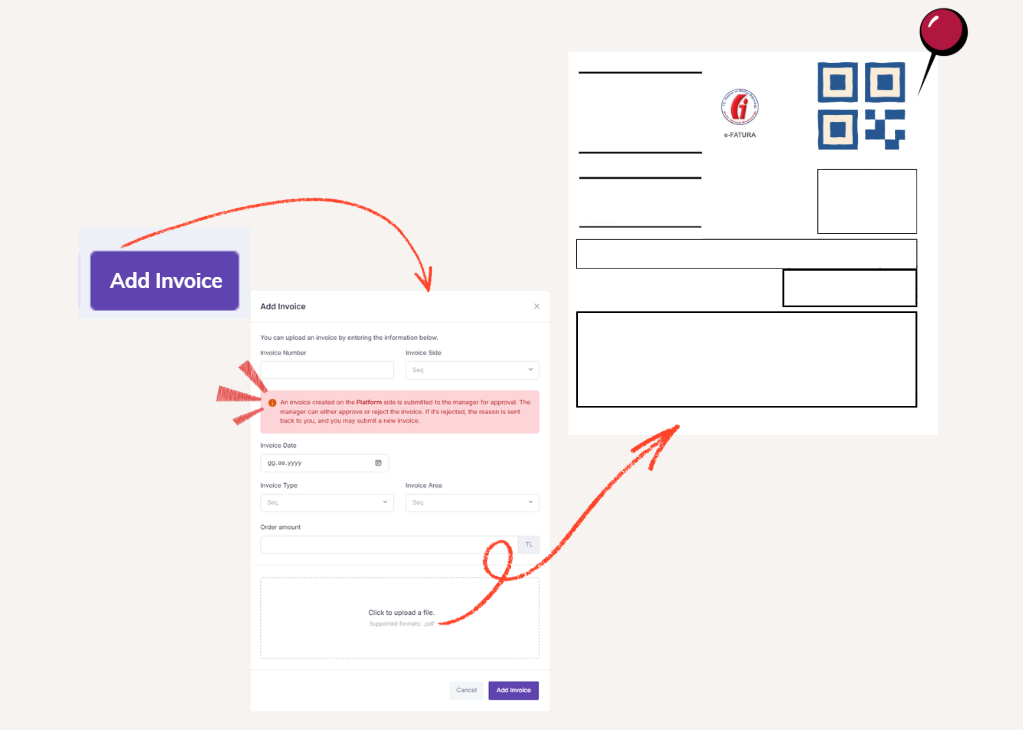
From the moment the delivery process begins, the seller is responsible for uploading an invoice for each processed delivery. The invoice upload process is performed using the Add Invoice button located in the top-right corner of this page.
During invoice upload, the seller is required to provide the following information:
Once this information is entered and the invoice file is uploaded, the invoice submission process is completed.
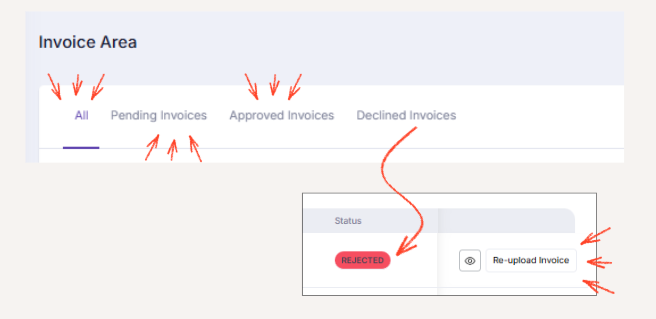
All invoices uploaded by the seller are collected under the All tab. Uploaded invoices are also submitted for Marketplace admin approval under the All tab on theMarketplace Console → Invoice Center → Invoices page.
At this stage, invoices appear in the Merchant Console with a Pending status and are listed under the Pending Invoices tab.
For a rejected invoice, the seller can use the Add Invoice button again to make the necessary corrections and re-upload the invoice.