
Lidia Commerce Documentation
The Sales Management section is the main operational area where sellers manage paid orders, delivery processes related to orders, invoice upload steps, and financial breakdowns. This section ensures that the entire process—from order creation to delivery completion—is managed in a controlled, traceable, and well-documented manner.
Sales Management is structured under the headings Order Management, Delivery Management, Delivery Profile, and Request Management. Through these headings, sellers can view the orders assigned to them in detail, track order statuses, and manage operational steps related to the delivery process.
Within the scope of Order Management, the status of paid orders can be monitored; order items, customer information, and financial details related to the order can be viewed. While cargo and delivery processes are tracked through the Delivery Management area, delivery-related configurations and definitions are managed under the Delivery Profile heading.
Request Management enables sellers to review and resolve customer requests such as cancellations, returns, or exchanges that may occur after an order is placed. In this way, post-sales processes are managed within a centralized and consistent structure.
The Sales Management section plays a critical role in enabling sellers to effectively manage both their operational and financial processes from a single central point.
1️⃣ Order Creation and Listing
Orders created by customers are first generated in the Marketplace Console. After payment is approved, the order is assigned to the relevant seller and reflected in the Merchant Console → Orders page.
On this screen, the seller can view all paid orders in a list format with the following information:order ID, reference number, delivery code, customer information, total amount, order date, delivery status.
Newly received orders appear on this screen with the New status.
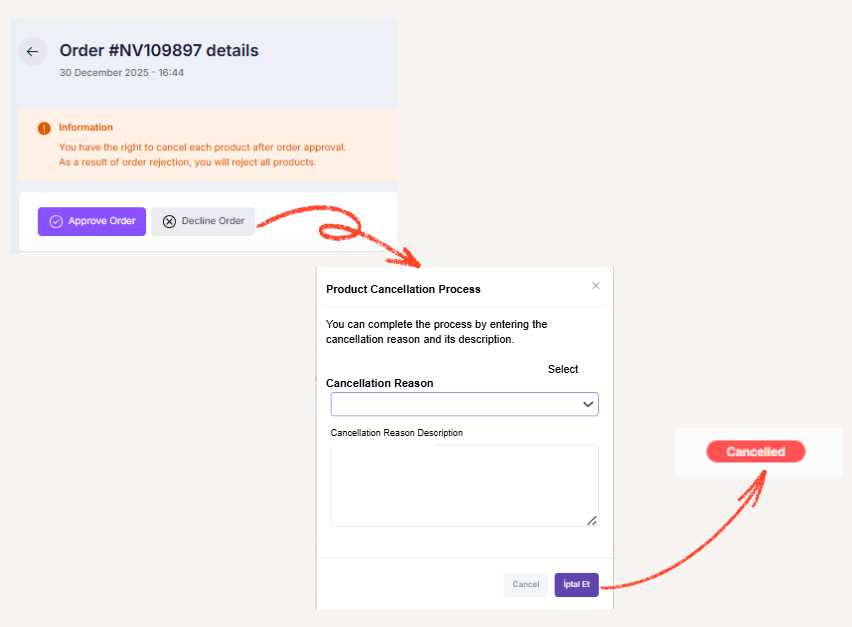
2️⃣ Order Approval or Rejection
Approval or rejection of a newly received order is performed through the order detail screen.
During the rejection process, one of the following rejection reasons can be selected -insufficient stock, incorrect product, other- and an additional explanation can be entered if desired. These actions can be performed from both the Marketplace Console and the Merchant Console.
3️⃣ Order Preparation and Delivery Transition
Approved orders move to the Ready status and become eligible for shipment.
If the seller offers products using one of the system’s integrated shipping providers, a delivery code is automatically generated for the order by the system. From this point forward, the delivery flow progresses through the following statuses:
To Be Shipped → To Be Delivered.
4️⃣ Invoice Upload Requirement
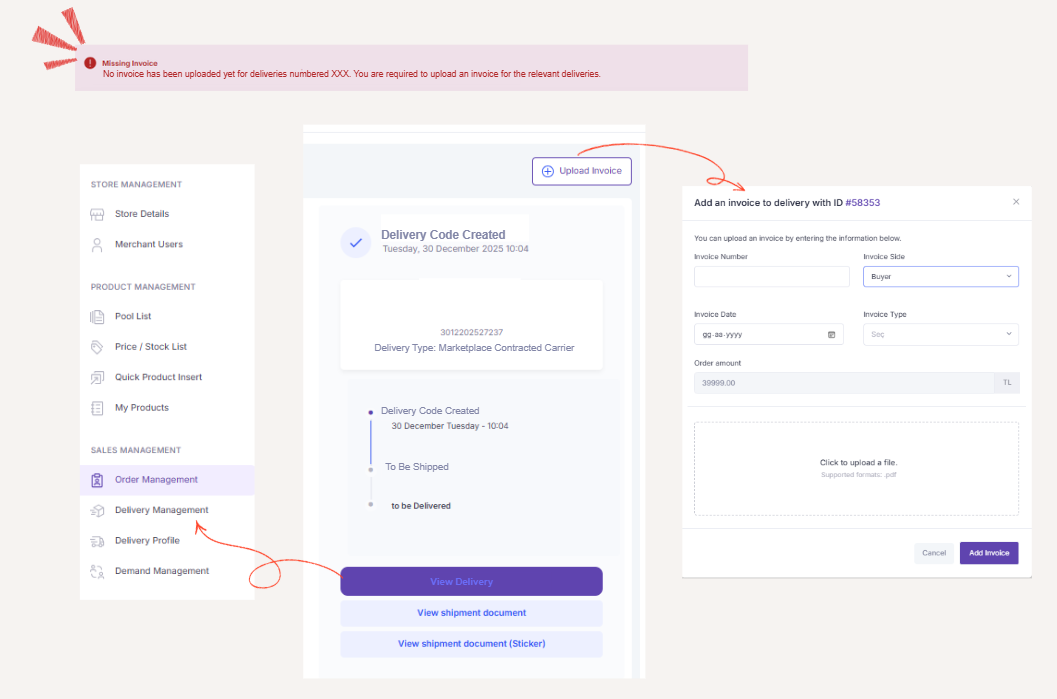
From the moment the delivery process begins, the seller is responsible for uploading an invoice for each processed delivery.
If there is a missing or unuploaded invoice, an Missing Invoice label is displayed under the order status on the Orders page, and the following alert message appears:“You have X pending invoice upload requests!”
Order Detail Page
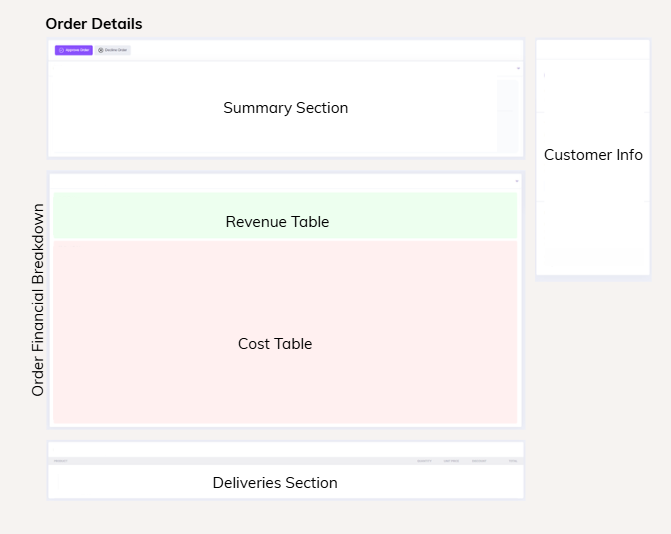
The order detail page is structured similarly to the order screen in the Marketplace Console and consists of three main sections.
Below these steps, the following action buttons are available:
The Delivery Management section is where the logistics process is managed end to end from the moment approved orders enter the delivery stage. Once orders are approved, they are converted into deliveries and are listed as independent delivery records on the Delivery Management page.
This section enables sellers to track delivery statuses, monitor shipping processes, and manage all steps until the products reach the customer in a transparent, traceable, and controllable manner.
Deliveries progress through specific statuses in a flow-based sequence. Depending on the progress of the process, a delivery may pass through the following statuses:
These statuses clearly indicate which stage the delivery is in and help sellers take the correct operational actions at the right time.
On the Delivery Management page, all deliveries are displayed in a list with the following information:Delivery ID, Order ID, Customer, District / City, Full Address, Status.
This list view allows sellers to easily track all active, ongoing, and completed deliveries from a single screen.
When navigating to the details of any listed delivery, all information related to the delivery is presented in structured templates.
If the delivery is carried out through a shipping provider integrated with the system, the Shipment Tracking button on the screen redirects the user to the shipment tracking page of the relevant shipping company. This allows real-time tracking of the delivery status through the carrier.
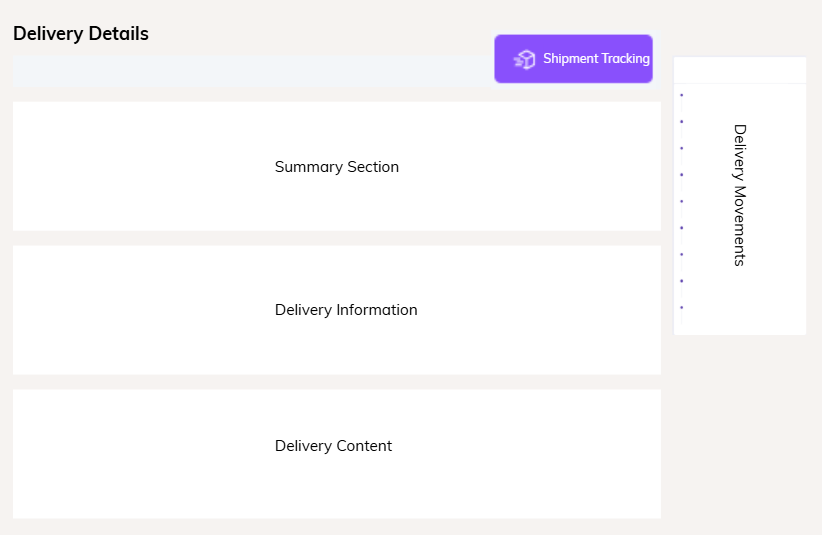
The Summary section at the top of the detail screen allows quick access to the core delivery information. This area includes:customer first name, last name, email address, phone number, order number, order reference number, delivery amount, delivery status.
The Delivery Information section presents detailed recipient and sender information related to the shipment:
Recipient Information: recipient name, phone number, mailing addressSender Information: sender name, sender address
This information is critical to ensure the delivery reaches the correct address and the correct recipient.
The Delivery Content section details the items included in the delivery. This area displays:product name, shipped quantity, unit price, discount amount (if any), total delivery amount.
This allows clear tracking of delivery contents and price breakdowns.
The Delivery Movements section presents the main logistics activities in chronological order. Each movement is displayed along with location information, date, and time details.
Example delivery movements:
This section allows sellers to track the delivery process step by step and analyze the reasons for potential delays.
The Delivery Profiles section is where sellers manage which shipping companies their products will be sent with and in which priority order. This section enables the standardization of delivery processes, increases operational efficiency, and allows centralized management of shipping operations.
The Delivery Profiles screen consists of two main tabs:
Delivery Profiles and Shipping Costs.
1.Standard Profiles
Standard profiles are system-provided profiles that include shipping options contracted with integrated marketplaces for sellers who want to ship their products via cargo. These profiles are part of a centrally managed structure provided by the system.
The definition and management of standard profiles are handled through the Marketplace Console → Settings → Logistics → Profiles page. Lidia provides the marketplace admin with the ability to manage profile structures by prioritizing shipping providers under small cargo and large cargo categories according to preference. This allows the logistics strategy to be centrally controlled.
On the Merchant Console side, sellers can view these profiles on the Delivery Profiles page under the Standard Profiles heading. Each profile is displayed with the following information:profile type, creation date, last updated date, and status.
When navigating to the details of a standard profile, sellers can see which contracted shipping companies are prioritized for small and large cargo shipments. This structure allows sellers to clearly understand which shipping provider will be used during the delivery process.
2.Custom Profiles
Under the Custom Profiles section, which is separate from standard profiles, all shipping companies that sellers or dealers have contracted with and defined in the system are listed.
In this area, sellers can:
This structure provides flexibility for sellers and enables customized shipping management for different product types or logistics scenarios.
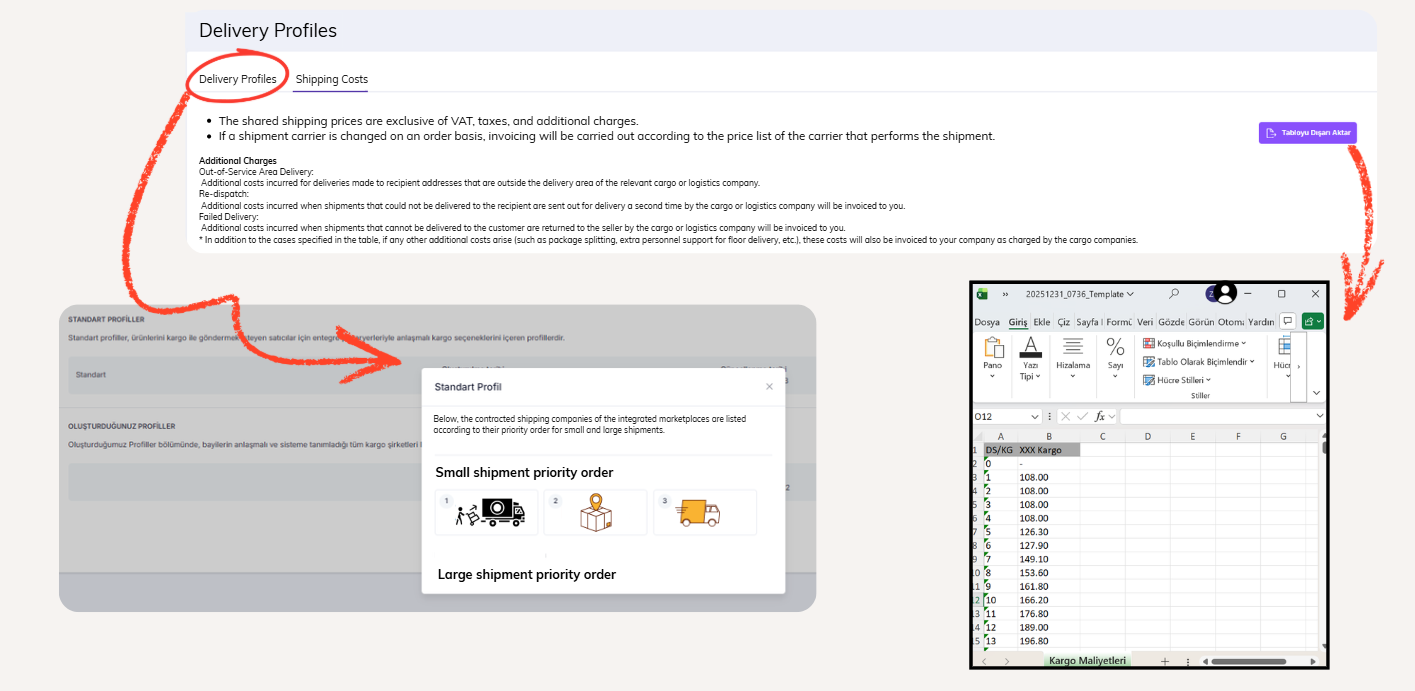
The Shipping Costs tab displays the cargo fees (₺) of shipping companies based on desi / kg. The table shown on this page can be exported and downloaded in Excel format using the Export Data option. The prices shown on this screen are for informational purposes only and exclude VAT, taxes, and additional fees.
When a shipping company is changed on an order basis, billing is carried out according to the price list of the shipping company from which the shipment is dispatched.
All informational warnings related to shipping costs are displayed on this screen, ensuring sellers are informed in advance about potential additional charges.
In addition to standard shipping fees, additional charges may occur in the following situations:
The Demand Management section is where sellers manage cancellation and return demands related to orders from end to end. All demands created by customers or the system are centrally listed under this section and can be tracked throughout the entire process.
Demand types are divided into Cancellation and Return. All opened demands are displayed in a list on the Demand Management screen.
Demands listed on the Demand Management page are displayed with the following main columns:
Related order, demand ID number, reference number, customer information, demand amount, demand creation date, demand status.
This structure allows sellers to quickly analyze which demand is associated with which order and customer.
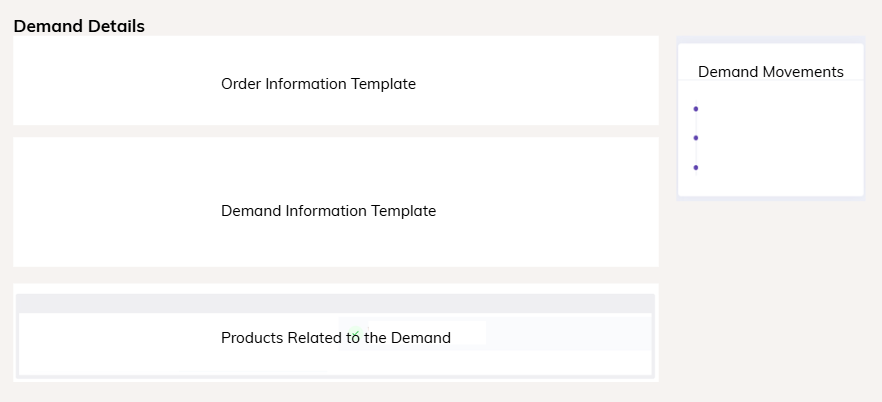
When navigating to the details of any listed demand, the page consists of four main templates. These templates allow all information related to the demand to be reviewed step by step in an organized manner.
The filters available on the Demand Management screen allow demands to be managed more easily and efficiently. Sellers can filter demands by:
Process type: cancellation / return
Date range: selected start and end dates
Demand amount: minimum / maximum values
Demand status: pending, new, in progress, closed, cancelled, rejected
This filtering structure reduces operational workload during high demand volumes and helps sellers quickly focus on relevant demands.