
Lidia Commerce Documentation
The Product Management section is the area within the Lidia Merchant Console where sellers create, manage, and prepare their products for sale in accordance with platform standards. Through this section, you can define your product data according to the correct category structure, add products not only by creating them from scratch but also by selecting from products that already exist in the catalog, quickly upload your products to the system through bulk uploads, and prepare them for go-live by tracking approval and publishing processes.
Additionally, sellers can manage product pricing and stock information through this area, and maintain their operational processes by monitoring the current status of products available for sale.
In Lidia, product upload processes operate based on the Product Pool concept. Pools are structures created to ensure that sellers upload their products in compliance with the data structure and standards defined on the platform. Pools can be created from both the Marketplace Console and the Merchant Console.
Sellers can perform product upload operations through the Merchant Console using the following methods:
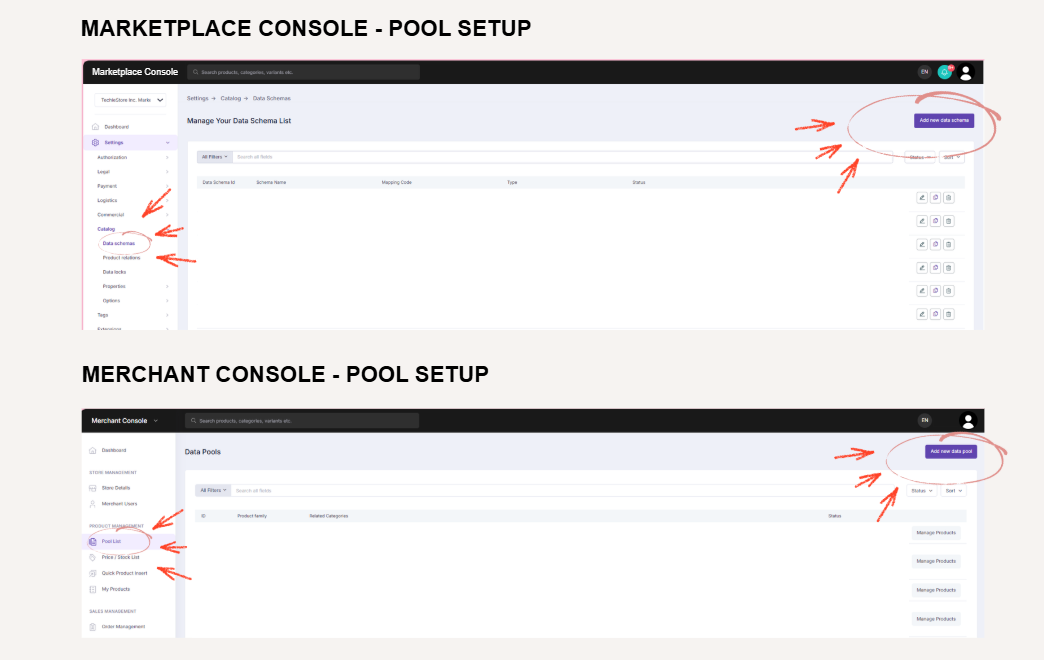
The Pool List page is the main workspace where product family creation, schema download, product upload, data validation, and approval/publishing processes are managed end to end.
1) Creating a Product Family
When you enter the Pool List page, the process is initiated using the Add New Product Family button located in the top-right corner of the screen. Creating a product family is the mandatory first step to ensure products are uploaded with the correct schema.
Steps:
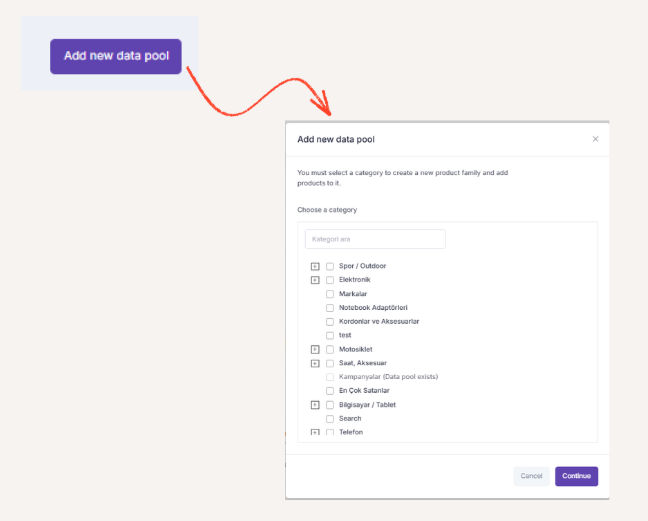
This structure is designed based on a single catalog approach. A product family contains category-specific options and properties, as well as the mandatory / optional status of these fields. This approach eliminates the need to redefine the same fields for each product upload, allowing products to be added to a predefined standard structure, accelerating the process and reducing manual repetition.
2) Product Family List and the “Manage Products” Area
All created product families are listed under the Product Families section on the Pool List page. The following information is displayed for each product family:
The Manage Products button next to each product family is the primary area where product upload and data management actions are performed.
3) Downloading the Data Schema (Excel Template)
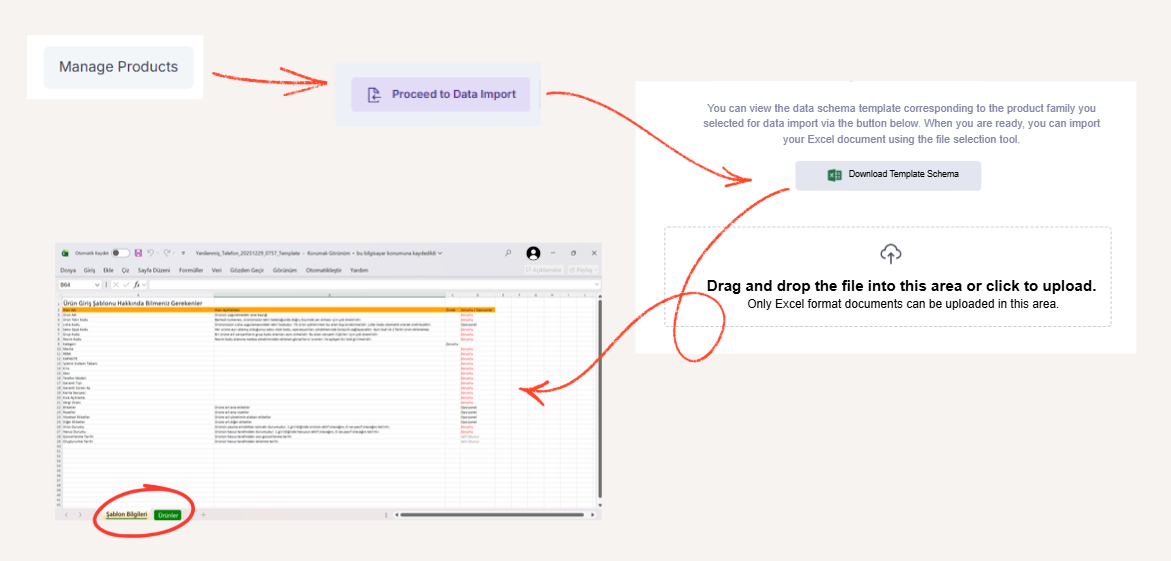
After clicking the Manage Products button, the product upload process is initiated using the Import Data button located in the top-right section of the screen.
At this step:
These differences arise from category-specific attribute and option fields, as well as the mandatory / optional definitions of these fields.
4) Excel Template Structure and Data Entry
The downloaded Excel file consists of two main sheets:
Using this sheet, bulk product upload can be performed by entering data for multiple products.
5) Excel Upload and Onboarding Steps
After completing the Excel template, the file is uploaded to the system using the file selection tool. The upload process consists of the following onboarding steps:
Upload Excel Document -> Validate Data -> Completed
Once these steps are successfully completed, the product upload process is finalized.
6) Pool Statuses and Product Flow
Uploaded products are managed under specific statuses before going live. The following tabs are displayed on the Pool List screen, each showing the number of products under the relevant status:

The process flows as follows:
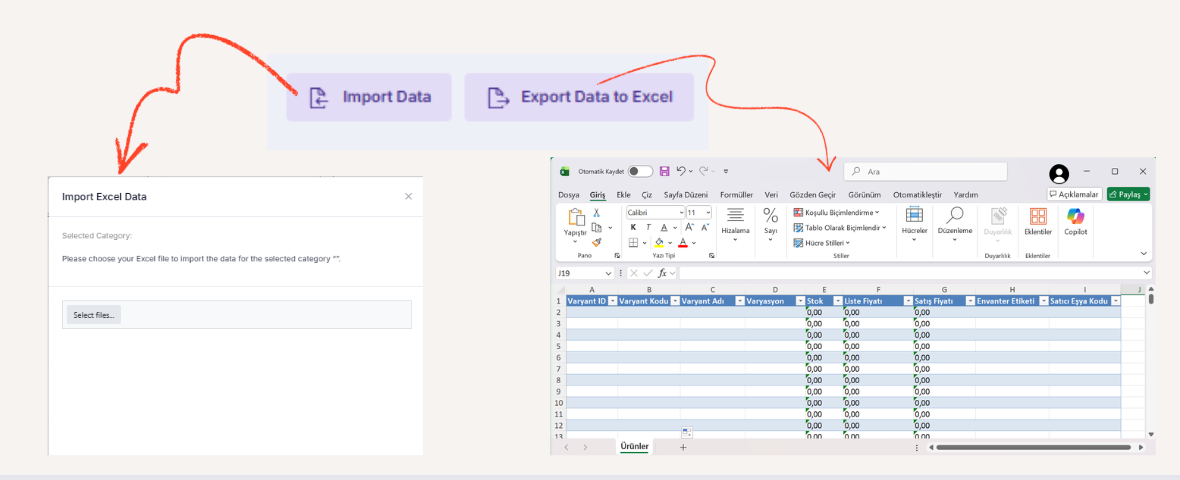
7) Exporting Data
Throughout the entire process, products listed in pools can be exported in Excel format using the Export Data button when needed. This feature can be used for reporting, validation, and archiving purposes.
The Price / Stock Management page is the area where sellers centrally manage the stock, pricing, and sales availability of products and variants in their inventory. This page is used to ensure that products remain available for sale, are listed with accurate pricing, and that operational disruptions caused by stock depletion are prevented.
Through this screen, sellers can view the products in their inventory and update critical price and stock fields instantly and dynamically. In addition, as a seller, you can filter the listed inventory by brand and category to more easily and quickly display products, simplifying management for large product volumes.
Using the Import Data button located in the top-right corner of the screen, price and stock data can be uploaded in bulk by selecting the relevant Excel file for the category. This method provides fast and error-free updates, especially for sellers with large product volumes.
On this page, the following information is displayed in a table format for each product variant in the inventory:
Among these fields, Inventory Label, Stock Status, List Price, and Sale Price are critical and dynamic fields that can be updated instantly through the Merchant Console. Changes made to these fields have a direct impact on product availability and pricing.
Stock Alerts and Indicators
If there are products with low or depleted stock levels among the listed items, the system provides alert notifications to inform the seller.
These visual indicators enable sellers to take quick action and help prevent sales losses caused by stock shortages.
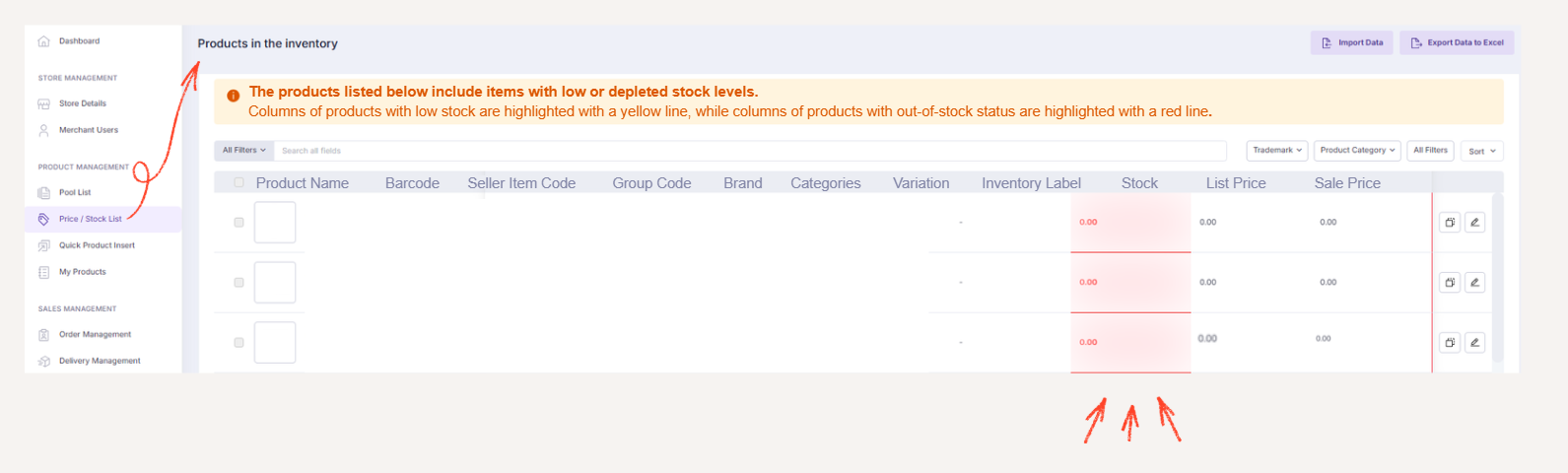
All inventory data listed on the Price / Stock Management page can be exported in Excel format using the Export Data button. This feature can be used for reporting, auditing, archiving, and data sharing with external systems.
The Quick Product Insert page is a feature that allows sellers to quickly and efficiently add products that already exist in the platform catalog to their own inventory. This page is designed to eliminate repetitive product data entry, shorten product onboarding time, reduce operational workload, and accelerate the go-live process.
Through this screen, sellers can create new SKUs for their stores by using products that have already been uploaded to the platform and are in a sale-ready state, by defining only stock and pricing information. This structure provides a significant operational advantage, especially for sellers working with large catalogs and requiring rapid product publishing.
The products listed on this page are all sale-ready catalog products available on the platform. Each product is presented with the following information to enable quick selection and comparison:
-Product Name
-Small product preview image
-Barcode-Brand
-Category
-Variation information
-Tax Rate
These details help sellers quickly identify the correct product and minimize the risk of incorrect product selection.
Add Product from Catalog
The Add Product from Catalog section is used when there is a product in the system that is identical to the product you plan to sell. Instead of re-entering all product data, you can add the product to your inventory by defining only the following information:
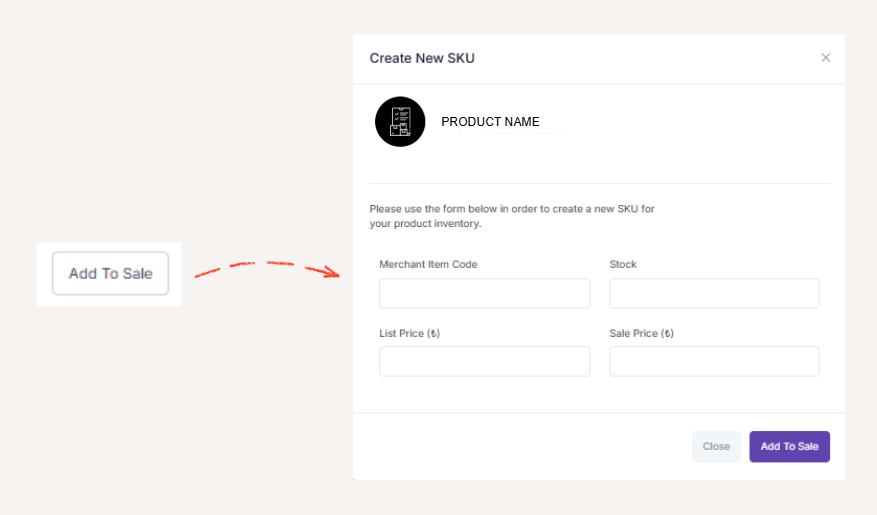
As a result of this process, a new SKU specific to your store is created, and the product becomes ready for sale.
Sellers can filter the listed products by brand and category to quickly access the products they are looking for. This filtering capability significantly improves usability, especially when working with large product catalogs, and makes the product insertion process more efficient.
The Products page is the main management area where you can view all your active and inactive products that you have uploaded to the system as a seller. This page is used to prepare products for sale, review existing product data, and identify any missing or incomplete fields that may need to be updated.
On this screen, products are listed together with the following information:
This listing enables sellers to quickly analyze the overall status of their products from a single screen.
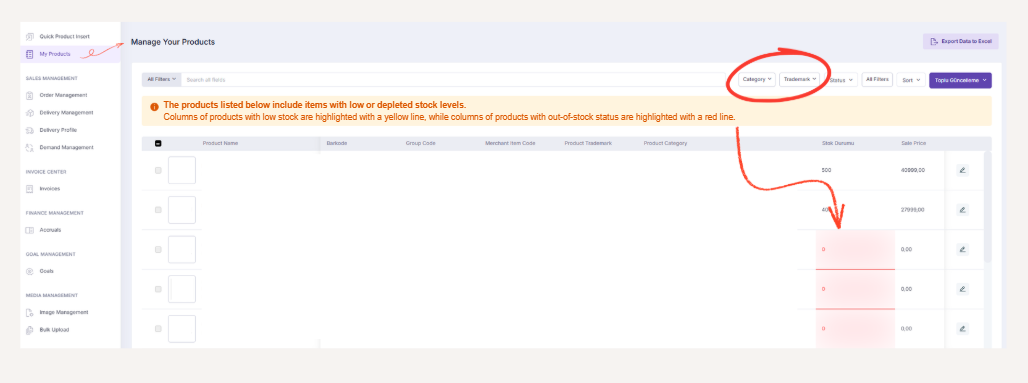
When navigating to the details of any listed product, the following tabs are displayed: Product Information, Media Management, Related Variants, Sales Information, Attributes.
The Product Information tab contains the basic descriptive details of the product. Core product information is displayed in this section.
The Media Management tab is where uploaded images and documents related to the product are managed. In this section, you can:
Image uploads are not performed on this page. New media uploads are handled through the Pool List page.
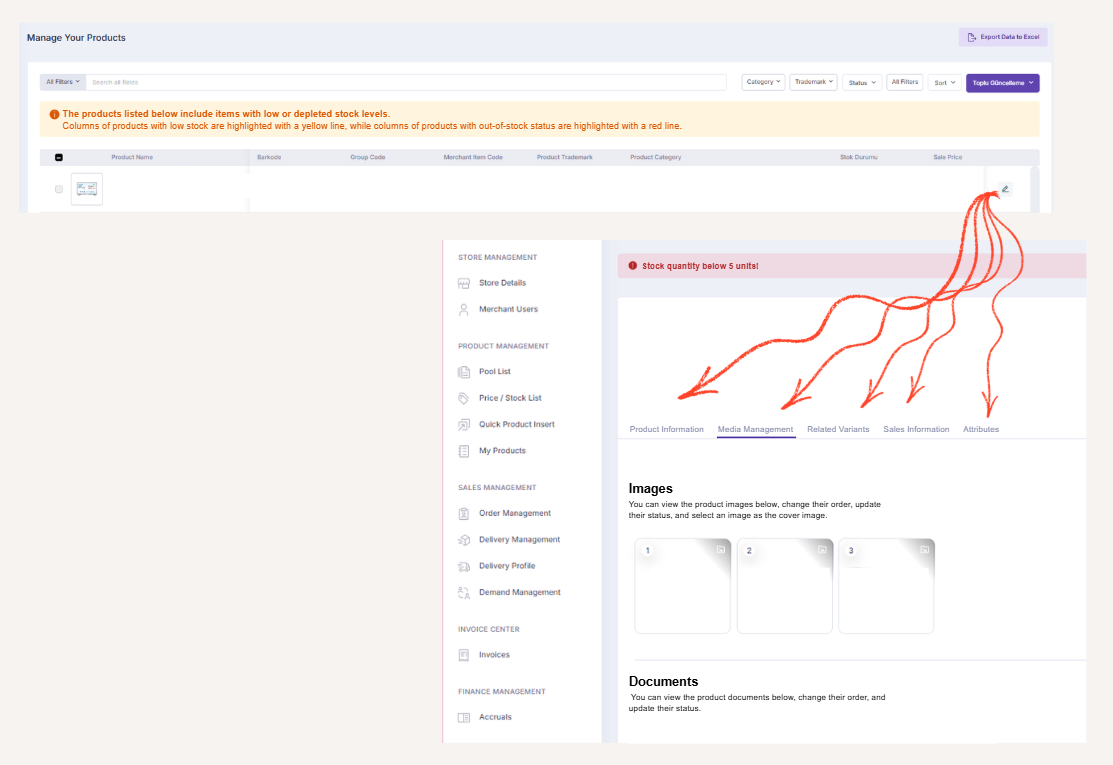
The Related Variants tab displays product variants that are linked to each other using a group code. The following information is listed for each variant:-Variant Name-Variant Code-Integration Code-Attribute Count-Media Count-Status
This structure allows variant-based products to be managed as a single unified product group.
The Sales Information tab displays key sales-related details of the product:
In addition, when the stock quantity falls below 5, the following alert is displayed on the screen:
“Stock quantity below level 5!”
This alert helps ensure more effective stock monitoring.