
Lidia Commerce Documentation
Welcome to Lidia PIM. This guide is designed to help you build the core data model you need before adding products to the system.
Product onboarding follows a specific setup sequence. Throughout this guide series, you will:
For the smoothest experience, it is recommended to complete the steps in order.
Make sure that you have the required user permissions.
In Lidia PIM, the first and most critical step for managing your products in a structured and sustainable way is to design your data schema correctly.
A well-structured data schema helps you group similar products under a consistent model and ensures that product data progresses in a controlled way based on category.
 What Is a Data Schema?
A data schema is the core data model that defines which information will be stored for your products and how that information will be managed.
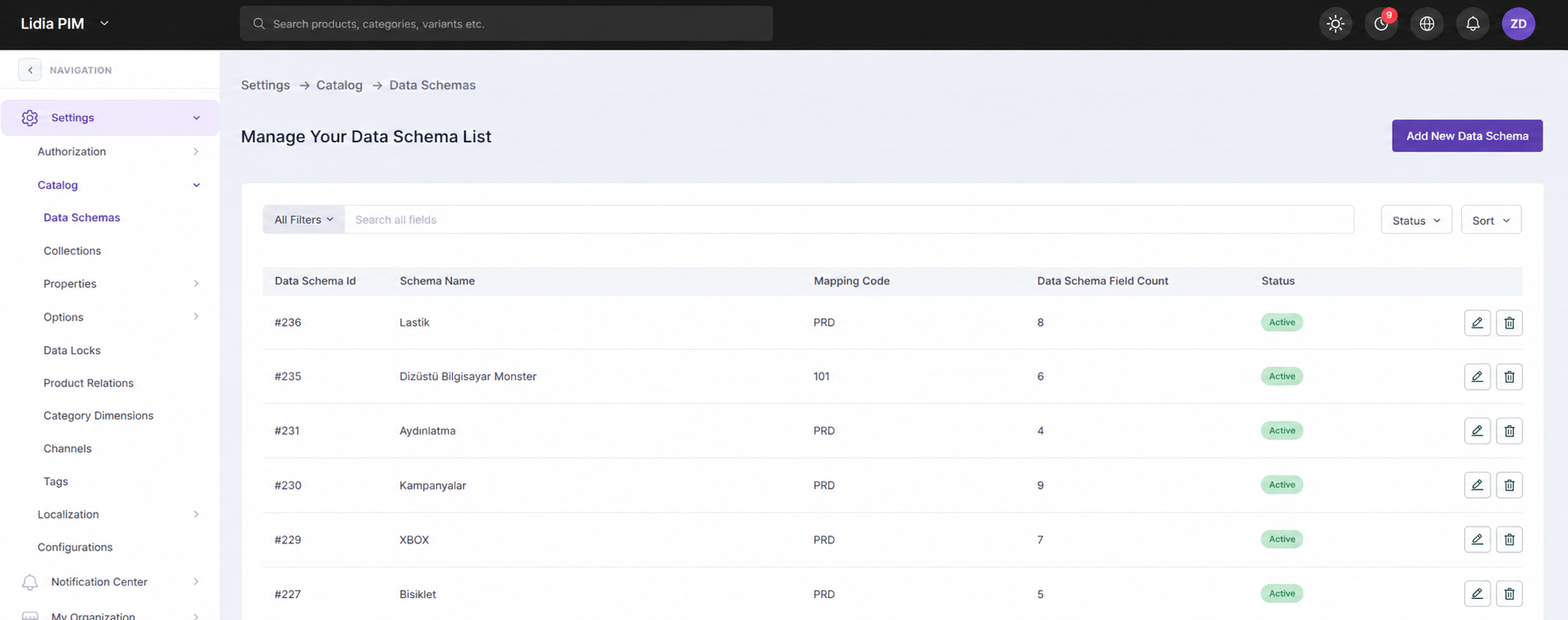
Simply put, a data schema:
This means your products are managed within a predefined and controlled structure rather than through random and inconsistent fields.
Instead of creating new fields and rule sets every time for similar products, you can use the Television data schema you created for multiple television product groups.
If different product groups require different fields or rules, you can create separate data schemas for each of them.
Why Is a Data Schema Necessary?In Lidia PIM, category, pool, and product structures work together with the data schema so that product data can progress in a healthy and consistent way.
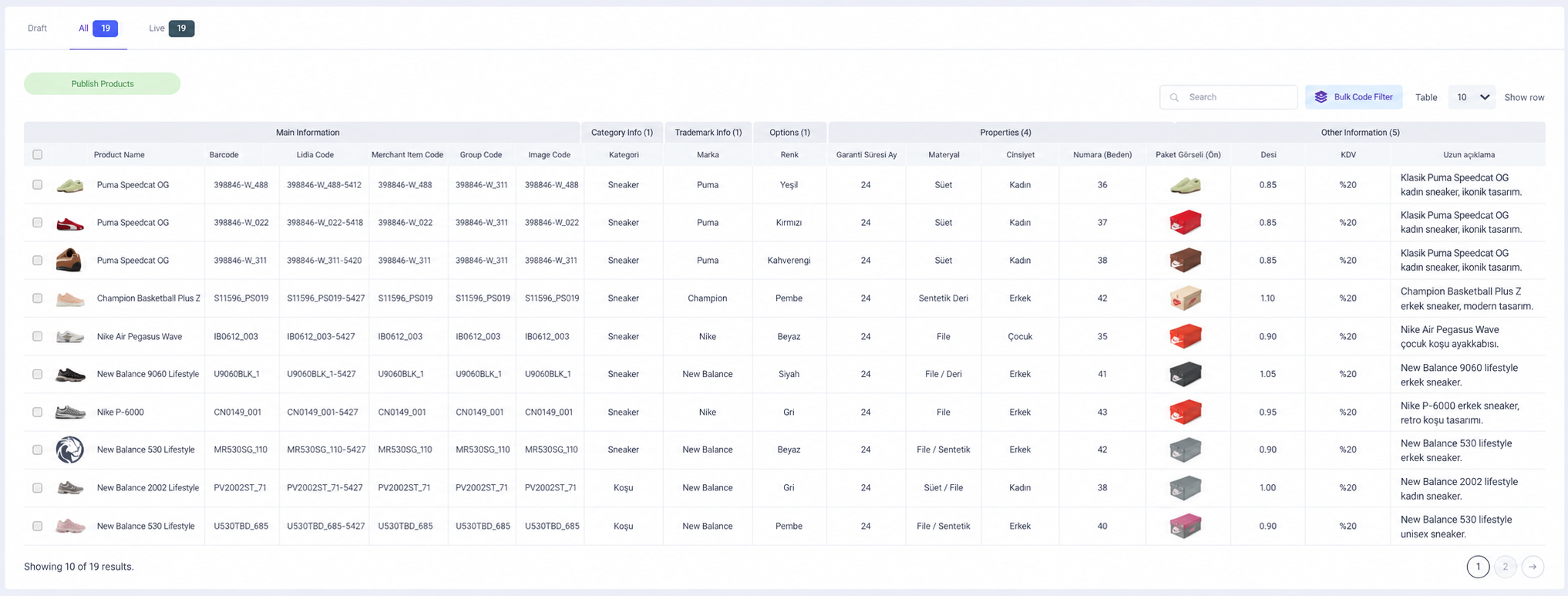
Thanks to the data schema:
How to Create a Data Schema?Follow this path:
The data schema list page opens.
Click the Add New Data Schema button.
In the opened window:
Click Save. The data schema is created and you are redirected to its detail page.
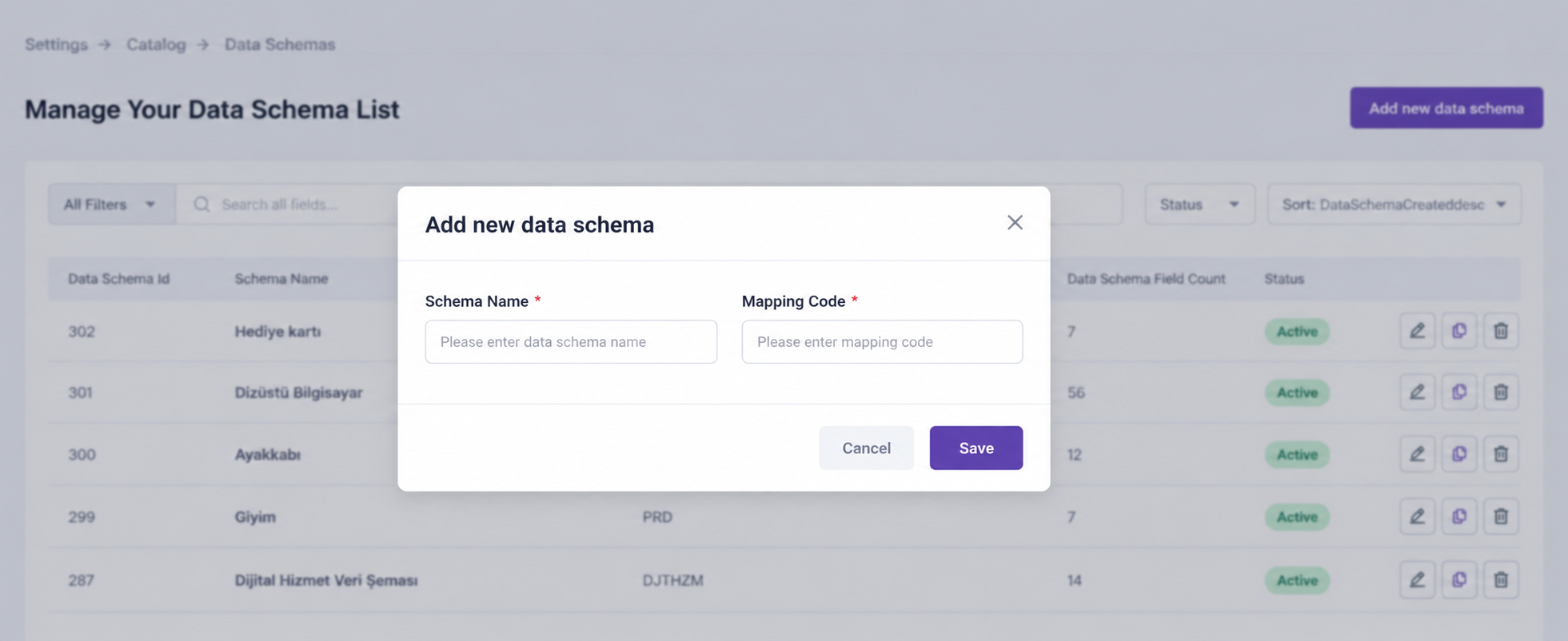
The Matching Key allows fields to be linked between data schemas in Lidia PIM and Lidia Console when both systems are used together.
If the customer uses both Lidia PIM and Lidia Console, each application may contain separate data schemas. The Matching Key helps associate the structure defined in PIM with its corresponding structure in Console.
How to Add Data Schema Fields?Data schema fields are the building blocks that define which information will be collected on the product card.
Open the detail page of the data schema you created.
Open the Data Schema Fields tab.
The Field Library is displayed on the left side of the screen and Schema Fields on the right.
The Field Library includes:
One Category and one Brand field are included by default.
Depending on your needs, you can add Category, Brand, Properties, Options, and References to the data schema.
You can add fields by dragging and dropping them into Schema Fields, or by selecting one or more fields and clicking Add Selected.

After adding fields, make sure to click Save.
Until you save, none of the fields you added or edited are permanently assigned to the data schema.
You can select multiple fields at the same time and add them to the data schema in bulk.
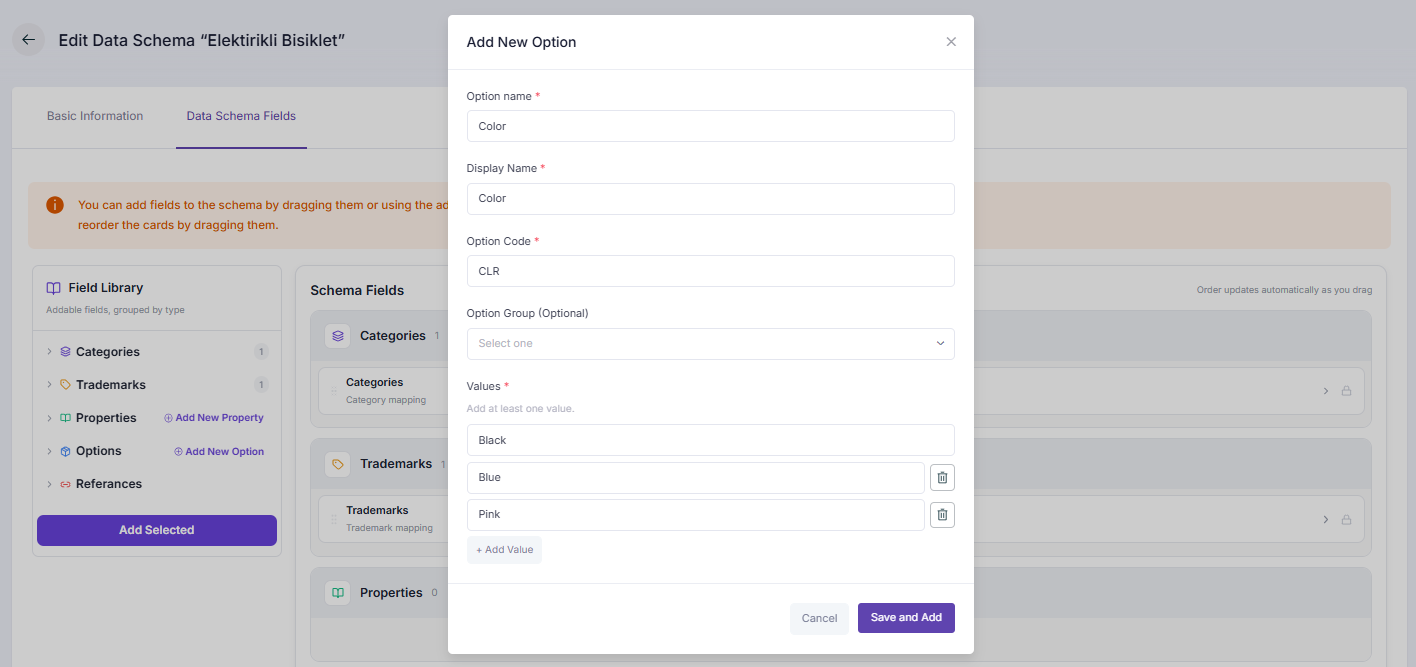
If the property or option you need has not yet been defined in the system, you can create a new Property or Option directly from this screen and add it to the data schema.
How Are Added Fields Configured?Each field added to the Schema Fields area includes settings that define how the field behaves.
These settings are mainly managed under three sections:
The Basic Information section includes:

Validation settings determine how the field behaves during product management.
When enabled, the field must be filled in before the product or variant can be published.
When enabled, the field becomes non-editable on product screens.
When enabled, products with different values in this field are displayed as separate items on listing screens.
Ensures that the entered value matches the data type defined for the field.

The Scope setting is available only for Property fields.
When a property is added to a data schema, you can define whether it will be used as:
Scope selection is available only for Property fields. It determines whether the property will be maintained at product level or variant level.
 Which Fields Are Required?
The following fields are required by default when added to a data schema:
Whether Property and Reference fields are required can be determined by the user based on need.
What Are the Field Types?There are five main field types in a Lidia PIM data schema.

| Field Type | Description |
|---|---|
| Property | Stores product attributes that do not affect price or stock, such as screen size, material, or energy class. |
| Option | Stores information that differentiates variants and can result in different price or stock values, such as color or size. |
| Category | Associates the product with the category structure in the catalog. |
| Brand | Associates the product with the correct brand. |
| Reference | Associates product or variant information with predefined system fields. |
Properties define product attributes that do not cause price or stock changes.
Each property has a defined data type, such as text, integer, select, date, or measurement.
Properties are not required by default. You can enable Required when needed and use Scope to define Product or Variant level.
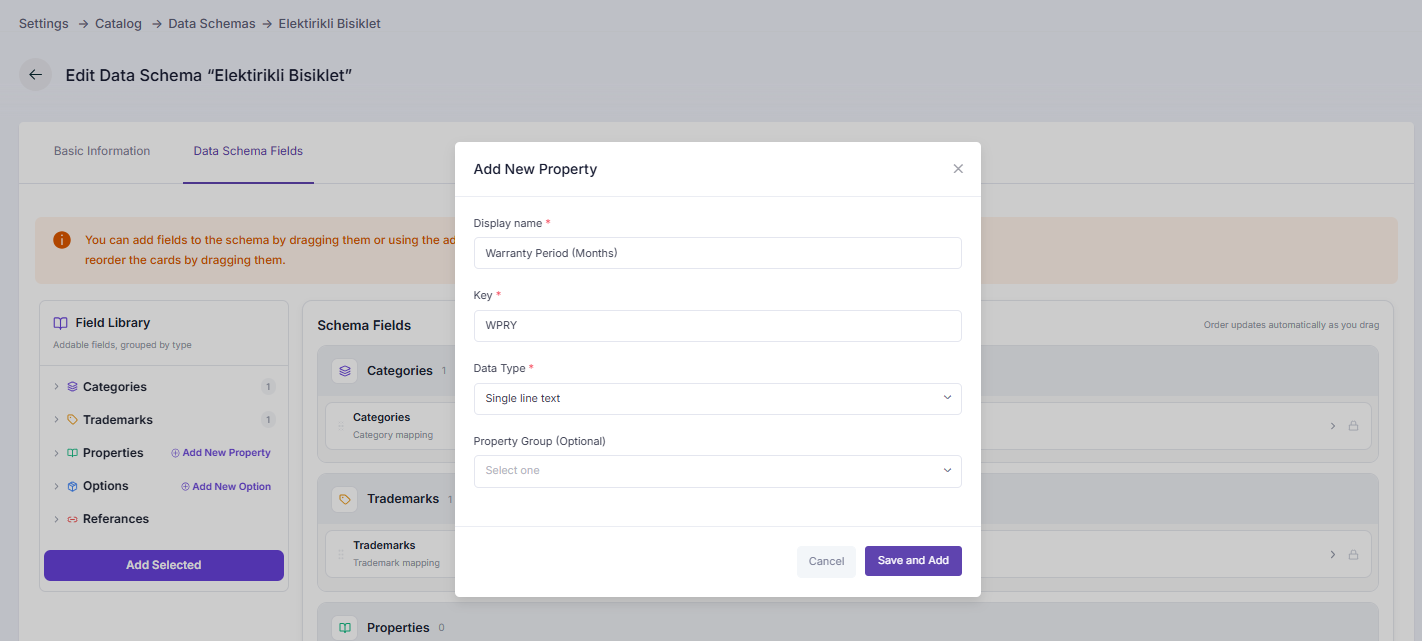
Options store values that create different variants of a product.
For example: Color — Black, White; Size — S, M, L.
Option fields added to the data schema are required.
Category defines the position of the product within the catalog.
The category field is required and a product can be associated with more than one category.
Brand associates the product with the correct brand.
The brand field is required.
Reference fields associate product or variant information with predefined system fields. Since product and variant levels can contain separate reference fields, different content can be maintained independently.
For example, the system may contain:
The following references can be added to the data schema:
This structure allows product-level and variant-level content to be managed independently.
If the Product Name reference is added to the data schema and you enter a product name during an Excel bulk product import, the system uses the value entered in the Product Name reference field.
The reference value overrides the value entered in the standard product name field and takes priority.
When creating a property or option, you can select a data type that fits the field structure.
What Are the Minimum Recommended Fields?To ensure that products can be positioned correctly within the catalog and managed at a basic level, certain fields are recommended.
It is recommended to start with the minimum field set and expand the data model as new requirements arise.
How to Define a Required Field?When a field is marked as required, the related information must be completed before the product or variant can progress through the publishing process.
Add the relevant field to the data schema.
Open the settings of the field you added.
Activate the Required setting.

Save the changes to apply the setting.
Making too many fields required can make product creation and product import processes more difficult. It is recommended to keep required fields at a minimum.
Why Can’t a Category / Pool Be Used Before Creating a Schema?A data schema defines the fields and rules that will be used to manage product data.
Technically, a category can be created without a data schema. However, a category without an associated data schema remains in draft status and cannot be selected during pool creation.
Once a data schema is associated with the category, the product data model is defined and the category becomes available for pool creation.
This dependency prevents product data from progressing through an incomplete or inconsistent structure.
Example Scenario: Creating a Data Schema for a Television ProductImagine that you want to manage television products under a consistent and controlled data model.
Click Add New Data Schema.
Schema Name: Television
Matching Key: TV
Click Save.
Configure the required validation settings and click Save.
Your data schema is now ready to be used in product management.
A pool is automatically created by the system for each data schema you create.