
Lidia Commerce Documentation
In this guide, you will learn what a pool is, what it is used for, how it is created, and how categories, data schemas, and pools work together.
In the previous guides, we created the product data schema and prepared the product model by defining properties and options. Now, let’s review the structure where products are managed.
 What Is a Pool?
A pool is the working area where products are first created and managed in the system. Products are loaded into this area, and their information is reviewed here.
Products can be loaded into a pool through Excel files or integrations such as SAP. Each pool is linked to a specific category and uses the data schema defined for that category. This ensures that products are created and managed in line with the standard data structure defined on the platform.
In other words, a pool is the starting point that allows products to be loaded into the system with the correct data model.
What Is a Pool Used For?
You use pools when loading products into the system. Product data is created, edited, and controlled within this area.
With pools:
If you created a Television category, you can use the pool linked to that category to load your television products with the relevant data model.
When you create a new data schema, the system automatically creates a pool with the same name. This pool is used as the area where products linked to that data schema will be managed.
Why Is a Category Required to Create a Pool?
When creating a pool, you must select a category. This is because the pool needs to know which type of product it will manage.
The category also determines which data schema will be used.
Each category works with a linked data schema. This data schema defines which fields products will contain and how product data will be structured. When the pool is created, the system uses the data schema linked to the selected category and ensures that products are created in line with that structure.
In other words, the relationship works as follows:
This relationship ensures that products are created with the correct data model.

If you have not created a data schema yet, you can first complete the How to Create a Data Schema guide.
Before moving on to the category creation step, you should first learn what a category dimension is and how it is defined.
What Is a Category Dimension?
A category dimension allows you to organize your category structure for a specific purpose. Within the same system, you can create multiple category structures and manage them separately according to different needs.
Follow these steps to create a category dimension:
Click Add New Dimension.
In the opened window, fill in the following fields:

Click Save. After the category dimension is created, you can move on to the category creation step.
How to Create a Category?
Follow these steps to create a category:
Click Add Category.
In the opened window, fill in the following fields:
If you want to build your category in a hierarchical structure, use the Parent Category field to select the upper category.
The Data Schema field is also available in the same window. A category can be saved without selecting this field. However, in that case, the category is created with draft status.

It is recommended to select a data schema while creating the category so that the category is directly linked to the relevant data model. If you created a draft category without selecting a data schema, you can later go to the category detail page and link the data schema there.
Your category is now ready to be used during pool creation.
 How to Create a Pool?
After completing category creation, you can move on to the pool creation step.
Click Add New Product Family.
In the opened window, categories defined in the system are listed, together with their subcategories if available.
To create a new product family and add products into it, you must select a category.
After selecting a category, click Continue.
Based on the selected category, the system creates an empty pool that is ready for product loading.
You can start creating or uploading your products in this pool.

If any category listed in the pool creation window is not linked to a data schema, it cannot be selected. In that case, a [No data schema] warning appears next to the category name. To create a pool, you must first link a data schema to that category.
How Is Pool Management Handled?
To manage the products inside a pool, you need to go to the pool detail page.
To do this, find the relevant pool on the Pools page and click Manage Products. This action takes you to the detail page of the pool.
A newly created pool is initially empty. Empty pools that do not contain products can be deleted. However, pools that already contain products cannot be deleted.
Product upload into a pool is done via an Excel file.
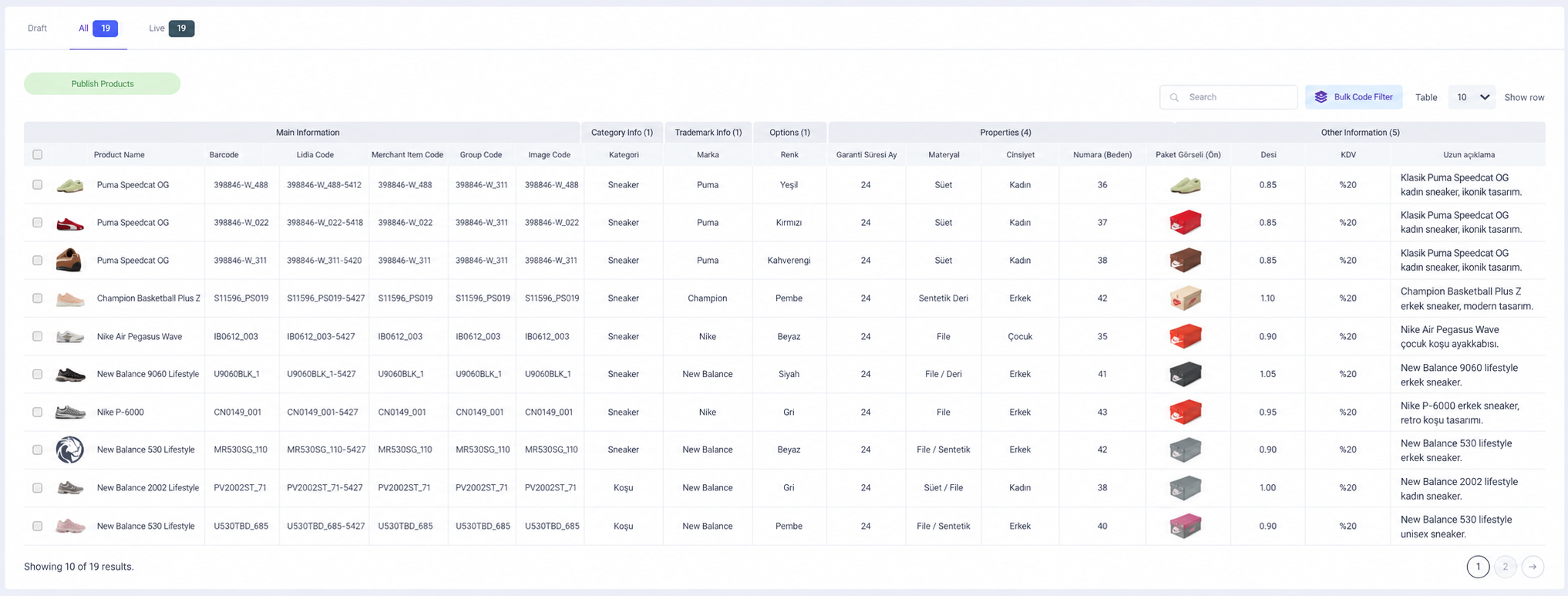
Uploaded products are first listed under the All tab on the pool detail page. At this stage, the products exist in the system but are not yet considered published. They are kept in the pool as products waiting to be published.
After you publish the products, they start to be listed under the Published tab on the pool detail page.
You can export the products listed in a pool. Published products and products waiting to be published can be exported separately.